
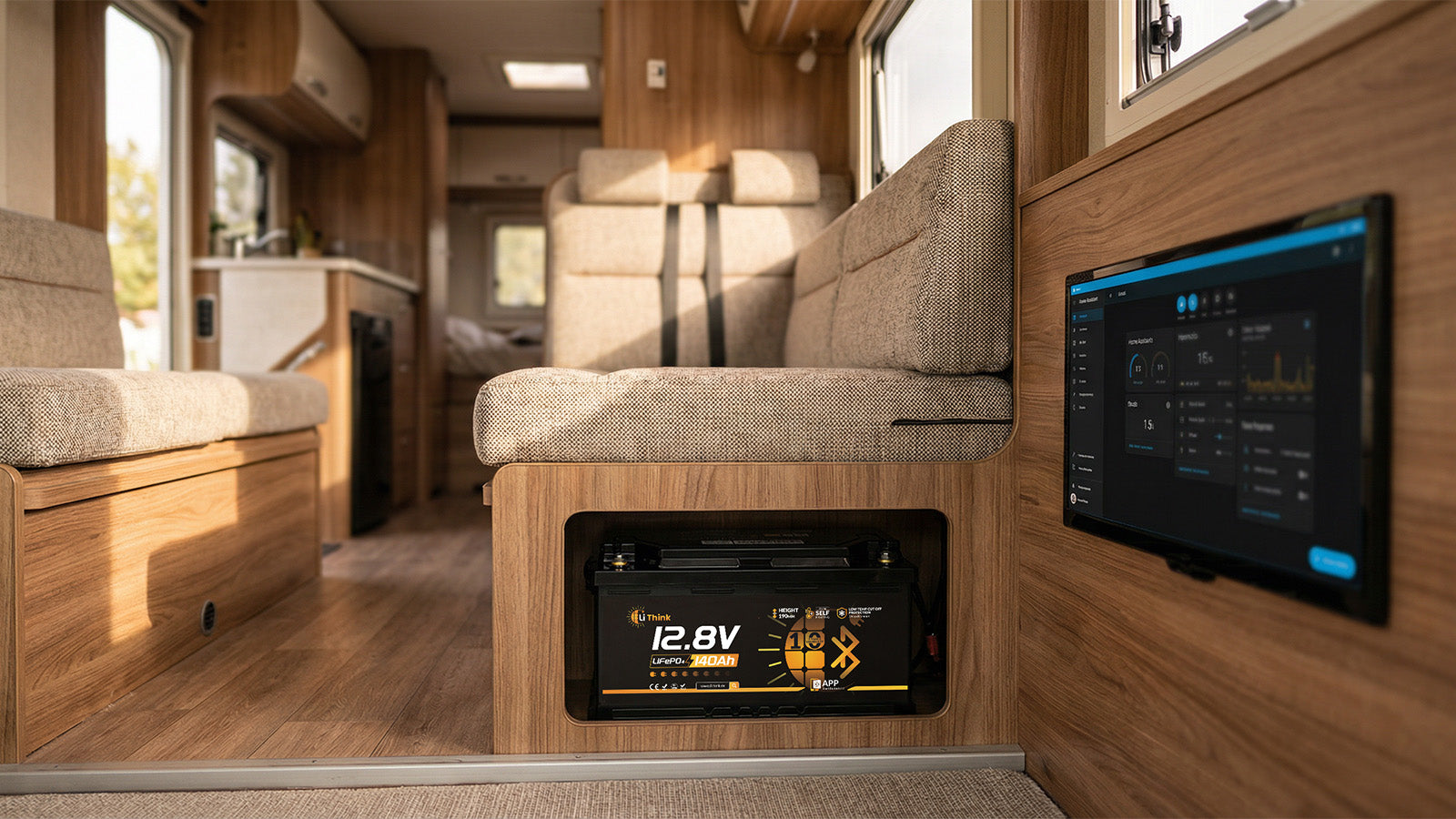
Acknowledgement: This tutorial is based on the README documentation and project data publicly provided on GitHub by the author of the BatMON (batmon-ha) project. We expressly thank the original developer for making the technical content and data available.
Project source (GitHub): https://github.com/fl4p/batmon-ha
This article explains step by step how to install, configure, and operate BatMON in Home Assistant in order to read battery data via Bluetooth Low Energy (BLE) directly from the Battery Management System (BMS) and display it reliably in Home Assistant.
The procedures described are particularly suitable for LiFePO₄ batteries with Bluetooth BMS, such as Lithink Bluetooth batteries, and are designed for use in RVs, off-grid systems, and stationary energy storage systems.
Important note: BatMON uses Bluetooth Low Energy for data transmission. Depending on environmental factors such as distance, metal shielding, wireless interference, or the Bluetooth hardware of the host, short-term connection interruptions may occur. This usually does not indicate a defect in the battery or BMS.
1) What Is BatMON and What Function Does It Provide in Home Assistant?
BatMON is an add-on developed specifically for Home Assistant to monitor battery systems. It establishes a direct connection to the Battery Management System (BMS) via Bluetooth Low Energy (BLE), continuously reading operating data.
The retrieved data is transmitted to Home Assistant via MQTT and made available there as sensor entities. Based on this, visualizations, logging, and automations can be created.
For Lithink LiFePO₄ batteries with Bluetooth BMS, BatMON enables a particularly lean system architecture because no additional gateways or serial interfaces are required.
- Direct BLE connection to the battery BMS
- Collection of battery voltage, current, and state of charge (SoC)
- Reading cell voltages and temperatures, depending on the BMS
- Support for multiple batteries in parallel
- MQTT Auto-Discovery for Home Assistant
- Integration into dashboards and energy overviews
In practice, BatMON has proven particularly useful in continuously operated systems, such as RVs or off-grid energy systems. With Lithink Bluetooth batteries, the data provided by the BMS is taken directly and mapped as independent Home Assistant entities.
2) Requirements
- Installed Home Assistant with Supervisor support.
- Bluetooth support on the host system, either internal or via USB adapter.
- Installed MQTT Broker, such as Mosquitto.
- Bluetooth-enabled battery, switched on and within range, such as a Lithink Bluetooth LiFePO₄ battery.
With Lithink Bluetooth batteries, the Bluetooth function is enabled at the factory. No additional activation or firmware adjustment is required. During setup, the battery should not remain connected in parallel with a smartphone app.
3) Step 1: Add the BatMON Repository
- Open Home Assistant.
- Navigate to Supervisor → Add-on Store.
- Add a new repository via the menu ⋮ → Repositories.
- Enter the following URL:
https://github.com/fl4p/home-assistant-addons4) Step 2: Install the BatMON Add-on
- Select BatMON in the Add-on Store.
- Click Install.
- Wait until the installation is complete.
5) Step 3: Install and Configure the MQTT Broker
- Install the Mosquitto MQTT add-on.
- Start the MQTT service.
- Enable the MQTT integration in Home Assistant.
- Configure the username and password correctly.
6) Step 4: Configure BatMON and Connect the Bluetooth Battery
devices:
  - address: CC:44:8C:F7:AD:BB
    type: jk
    alias: lithink_battery
    pin: "12345"
    adapter: "hci0"
    debug: true
    current_calibration: 1.0
In multi-battery systems, several devices can be defined, each with its own alias. Each Lithink Bluetooth battery will then be listed as a separate entity in Home Assistant.
7) Step 5: Start BatMON
- Start the add-on.
- Check the log output.
- Make sure that a stable connection to the battery exists and MQTT data is being sent.
8) Step 6: Display Battery Data in Home Assistant
After successful startup, the sensor data is automatically integrated into Home Assistant via MQTT Discovery. The displayed values correspond to the data supplied by the battery BMS and match the information in the battery app.
9) Troubleshooting
Battery Is Not Displayed or Does Not Connect
- Check the MAC address.
- Configure the BMS type correctly.
- Reduce the distance between the battery and the host.
- Evaluate the BatMON logs.
- Check the MQTT Broker.
Connection Exists, but No Entities Are Visible in Home Assistant
- Is the MQTT integration active?
- Are the MQTT credentials correct?
- Are MQTT publish messages present in the log?
- Reload the MQTT integration or restart Home Assistant.
Unstable Bluetooth Connection
- Avoid parallel connections with smartphone apps.
- Reduce wireless interference.
- Use external USB Bluetooth adapters.
- In stationary systems, such as RV or off-grid setups, a single permanent Bluetooth connection via Home Assistant is recommended, especially with Lithink Bluetooth batteries.
10) Acknowledgement & Project Source
This tutorial is based entirely on the publicly available README documentation and project data of the BatMON project. We thank the original developer for providing this technical information.
Project source: https://github.com/fl4p/batmon-ha
Share:
Victron Venus OS: Integrate Lithink Batteries via Bluetooth
Causes and Solutions for Voltage Drop at Inverter Startup